01Safety
A line, not a dot
The optical system developed by TeslaCoilPro engineers fans every beam into a 60–110° line. Power is spread along its whole length, so beyond ~4 metres from the aperture a wall is eye-safe. With a fleet the rule is the same — but there are several zones.
- Every wall's line is even; a bright dot means damaged optics — that module goes to service.
- Never open the optics; keep concave and focusing surfaces out of every beam.
- Never aim at roads or aircraft.
02Installation
Mount all the modules
- 01
Mount and aim each wall
Same as the one-wall guide: solid mounting, no cable tension, near zones out of reach.
- 02
Label everything
Name the modules and cables — with three or more walls this saves your evening.
- 03
First light one at a time
Power and check the walls one by one, standing beside the aperture (a brief blue flash is possible on cold start).
03Mode
Multiple devices = Wi-Fi
One wall is driven over Bluetooth; a fleet only over Wi-Fi: all walls and the phone on one network.
| Mode | For | Link |
|---|---|---|
| “Single device” | One wall nearby | Direct Bluetooth |
| “Multiple devices” | A fleet on one network | Wi-Fi: a router or the field mesh |
The mode is chosen at first launch or in Settings → “Operation mode”. This guide needs “Multiple devices”.
04Adding
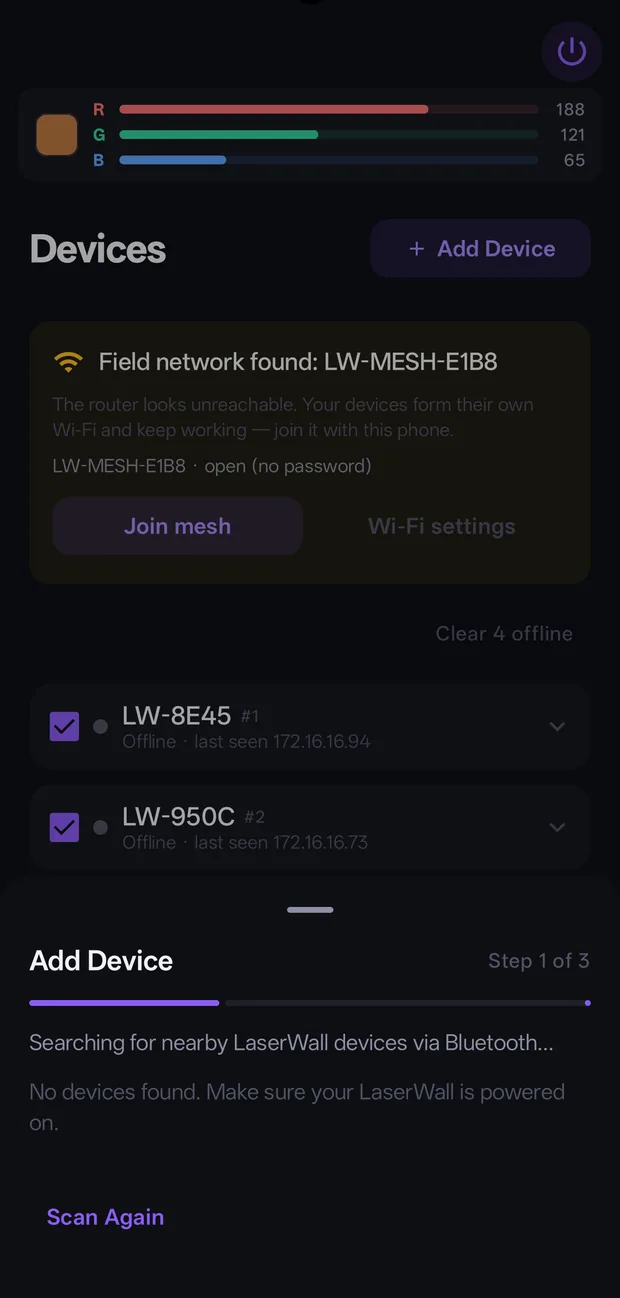
Add every wall to the network
- 01
Devices → “Add Device”
The wizard finds the powered wall over Bluetooth — pick it.
- 02
Enter “WiFi Network (SSID)” and “Password”
Tap “Connect to WiFi”. The wall stores the credentials and reboots into the network.
- 03
Wait for it to appear
Up to 90 seconds. A timeout does not erase the credentials: check the network and let the wall retry.
- 04
Repeat for every wall
Added walls show up as cards on the Devices tab.
05Fleet
Device cards
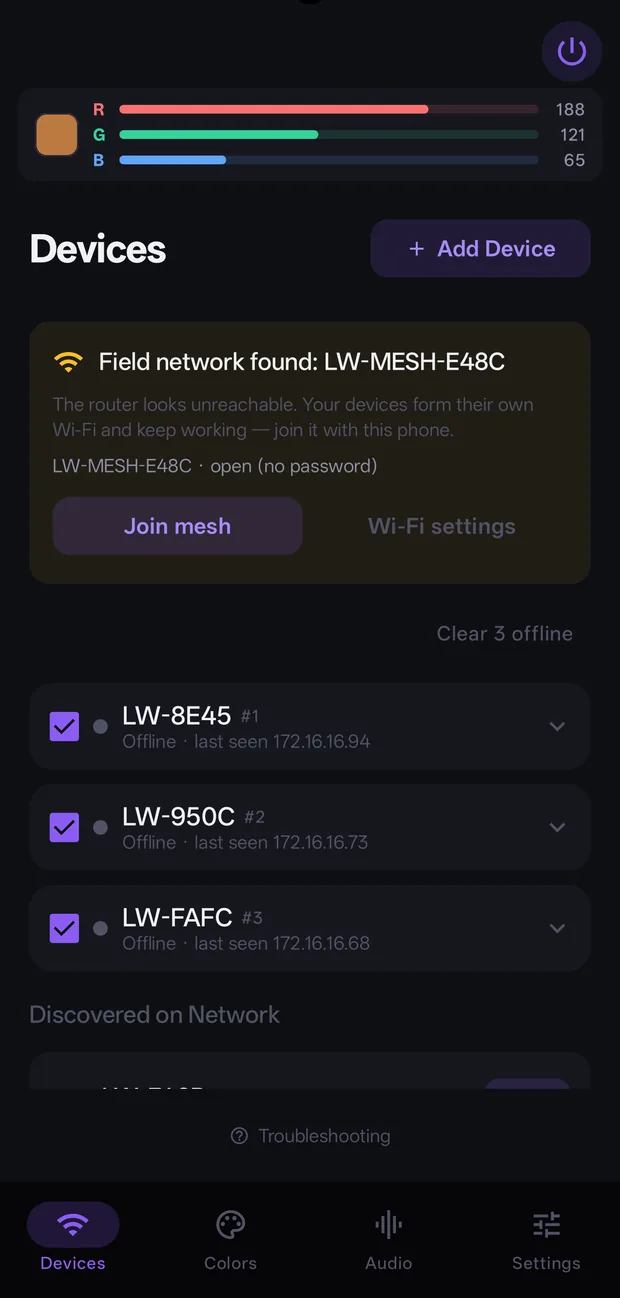
- The checkbox on the left — the wall receives group commands. Untick to exclude it temporarily.
- A wall is one line; tapping it opens its settings, and opening another closes the previous one.
- The row above the list sets the order: “Manual”, “Name”, “Online”, “Checked”, “Last seen”. In “Manual” a long press on the handle drags a row; the order is remembered.
- Pull the list down to refresh: the app re-queries the network and pulls fresh states.
- “Rename” — name walls by position (“Left”, “Backdrop”): everything gets easier.
- “Phase” — shifts one wall's effect; use deliberately, for running patterns.
- “Forget Wi-Fi” — wipes the wall's network and returns it to Bluetooth setup. “Remove” — deletes the card from the app.
- “Clear N offline” — sweep long-gone walls. The “hub” badge marks the field-network node; it has no signal level.
06Control
One command — all walls
Colors and Audio work exactly as in the one-wall guide, but every ticked wall receives the commands at once. Effects run in sync — the fleet shares one phase until you set offsets yourself. “Save to device” writes the look into every ticked wall; at the next power-up it comes back at exactly that brightness, with no phone around.
07Field mesh
A network without a router
In the field the walls raise their own open Wi-Fi network, LW-MESH, and keep working together.
- 01
Allow the mesh
Settings → “Mesh network (field mode)”. Walls will fall back to the mesh whenever the router is unreachable.
- 02
Or move the fleet now
“Move fleet to field mesh now” — every reachable wall reboots into the field network.
- 03
Join with the phone
The Devices tab shows a “Field network found” banner with a “Join mesh” button. The phone must be on the LW-MESH network — otherwise there is no control.
08Firmware
Updating the fleet
Updates go over Wi-Fi. Walls with a newer version bundled in the app carry an update badge right in their list row, so nothing needs expanding. The “Update all (N)” button above the list flashes them together; when it finishes, the result appears next to it (“Updated 8 of 10”), and whatever failed stays in the button's count — just tap again. Don't cut power during an update. USB recovery is a service measure: it wipes the network, mesh and name — the wall needs setting up again.
09Troubleshooting
If it doesn't work
| Symptom | What to do |
|---|---|
| All walls offline | The phone is on the wrong Wi-Fi. Put it back on the fleet's network (router or LW-MESH). |
| Visible but “offline” | A VPN on the phone. Turn it off or exclude the app from the tunnel. |
| Wall missing after adding | Wait up to 90 seconds; check SSID, password and signal; rerun the wizard. |
| Some walls don't react | Check the card checkboxes and the weak walls' signal levels. |
| The mesh “vanished” | Walls reassemble the network after a reboot. Wait for the banner and rejoin with the phone. |
| Commands jitter, effects out of sync | A second controlling phone is on the network. Turn on “Observer mode” there. |
| One colour on a wall stays on | A broken control wire for that colour inside the module; the other colours still obey. Send it to service. |
10Before the show
Checklist
- Every wall's near zone is out of the audience's reach.
- The phone is on the fleet's network; every needed wall has a card and a tick.
- “Static” verified on all walls at once.
- The group effect or audio rehearsed at show volume.
- After the show: “Stop” in Audio, output killed, power off.